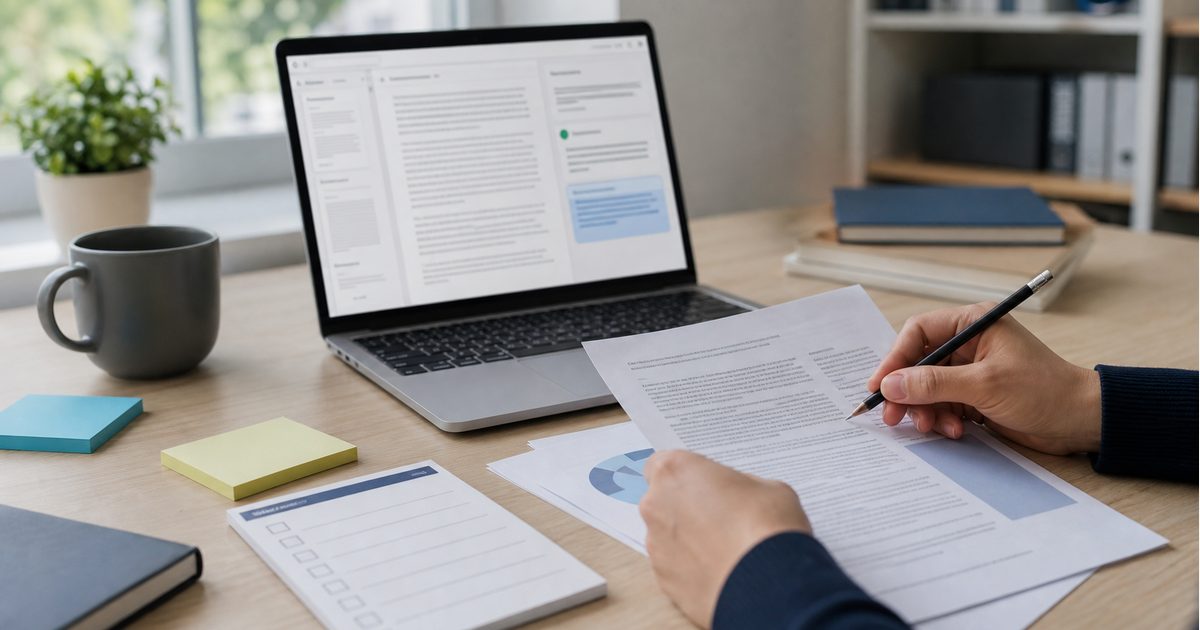

Long-document AI summaries can feel more reliable than ordinary chat answers because the model appears to be working from a specific PDF, report, slide deck, or uploaded file. That feeling can be misleading. A model may miss a footnote, ignore a chart, flatten uncertainty, quote the wrong page, or summarize text while losing the reason the document mattered.
For this article, the working scenario is a PDF report that has been uploaded to an AI tool for a learning note or action summary. Before using the output, I check the answer against the document. The aim is not to reread every page. It is to identify important claims, connect them to page or section evidence, and decide which parts are ready to keep, revise, or reject.
Know what the tool can read
File support is not the same across AI tools. OpenAI's file upload documentation describes support for many document, spreadsheet, image, and text file types, but also notes limits such as file size, token caps, usage caps, and differences in how images inside documents may be handled. OpenAI Academy gives practical examples such as summarizing PDFs, extracting key dates, and working with spreadsheets.
Microsoft Copilot's file upload support page says Copilot can analyze supported file types and answer questions about uploaded files, while Microsoft 365 Copilot documentation separates supported formats by use case and account context. Anthropic's Claude support page says some PDF visual analysis depends on model and document conditions, while non-PDF documents are generally text-extraction based. Google's NotebookLM help explains that it answers from uploaded or imported sources, with source-type and size limits.
The practical lesson is simple: do not assume the model saw the whole document in the way you saw it. If the answer depends on a chart, table, image, appendix, footnote, or scanned page, check whether the tool can actually read that part.
Turn the summary into checkable claims
A summary is easier to trust when it can be inspected. Ask the AI to convert its own answer into a claim table with four columns: claim, page or section, source text summary, and confidence note. The table should mark claims that are numerical, time-sensitive, policy-related, or based on a chart.
For a learning note, the most important question is not whether the summary sounds fluent. It is whether each important sentence points back to the document. If a claim has no page, section, heading, or quoted clue, treat it as unverified until you check it.
NotebookLM's source-focused design is a useful reminder here: when multiple sources are selected, asking specific questions and naming the relevant source can narrow the answer. The same habit works in any document workflow. Tell the AI which source, page range, or section should be used, then check that the answer stays there.
Turn the answer into a review worksheet
A weak prompt is: "Summarize this PDF and give me the key points." That can produce a readable answer, but it does not force the model to show evidence, identify uncertainty, or separate the document's claim from the model's interpretation.
A stronger prompt is: "Summarize this PDF for a beginner. Create a table with: main claim, page or section where it appears, supporting detail, uncertainty or limitation, and whether I should verify it manually. Do not include a claim unless you can point to the part of the document that supports it."
The expected output changes because the AI is no longer producing a smooth paragraph alone. It is producing a review worksheet. The answer may be less elegant, but it is easier to check. That is the right tradeoff when the document will shape a study note, article, presentation, or decision.
- Weak prompt: asks for a broad summary without evidence.
- Improved prompt: asks for claims, locations, limits, and manual checks.
- Expected result: a source-linked summary that can be reviewed quickly.
Failure signs in document summaries
The first failure is page drift. The AI names a page or section, but the detail appears somewhere else or not at all. The second failure is chart blindness. The model reads nearby text but misses the meaning of a chart, table, diagram, or scanned image. The third failure is compression loss, where caveats disappear because the model is trying to make the answer shorter.
Another failure is cross-source mixing. If several documents are uploaded, the model may combine a statement from one source with context from another. That can be useful for synthesis, but it is dangerous when the task is to summarize one document accurately.
The final failure is treating upload support as proof of understanding. A tool may accept a file format and still struggle with the file's layout, length, images, permissions, or complexity. Support for uploading is the start of the workflow, not the end of verification.
My five-claim document check
I start by asking for a claim table, then I check the top five claims manually. I prioritize numbers, deadlines, recommendations, warnings, and any claim that changes what I would do next. If the document is long, I ask the model to cite page ranges first, then open only those pages.
Next, I would compare the model's wording with the document's wording. If the document says a result is preliminary, conditional, or limited to a sample, the summary must preserve that limit. If the document includes a chart or table, I would inspect it directly instead of relying only on the text summary.
The working rule is straightforward: AI can make long documents easier to enter, but it should not be the final authority on what the document says. A good summary keeps the reader close to the source. If an important claim cannot be located, it should be rewritten, marked uncertain, or removed.
Continue learning on JoyfulGrid
Frequently asked questions
Can AI summarize a PDF accurately?
It can often produce a helpful first summary, but accuracy depends on the file, tool, model, layout, images, length, and prompt. Important claims still need source checks.
What is the fastest way to check a document summary?
Ask for a claim table with page or section references. Then manually check the highest-risk claims first: numbers, deadlines, recommendations, and caveats.
Should I trust page citations from an AI tool?
Treat them as navigation hints, not proof. Open the page or section and confirm that it directly supports the claim.
What if the document has charts or scanned pages?
Check whether your tool can read visual content in that file type. If the answer depends on a chart, table, or scanned page, inspect it yourself.
Sources
- File Uploads FAQOpenAI Help Center
Used for current ChatGPT file upload capabilities, supported file types, limits, and document-handling caveats.
- Working with files in ChatGPTOpenAI Academy
Used for practical examples of summarizing PDFs, extracting dates, analyzing spreadsheets, and working with uploaded files.
- Add or discover new sources for your notebookGoogle NotebookLM Help
Used for NotebookLM source types, source limits, and source-specific questioning guidance.
- File upload in Microsoft CopilotMicrosoft Support
Used for Copilot file upload behavior, supported file types, file limits, and example document prompts.
- What kinds of documents can I upload to Claude.ai?Anthropic Help Center
Used for Claude document support, PDF processing notes, file limits, and text-extraction caveats.